
No Aadhaar check, no tablet. Since the UP government’s order of 27 August 2024 (GO 667/77-1-2024), every student under the Swami Vivekananda Yuva Sashaktikaran Yojana has to clear e-KYC on the DigiShakti portal before a device is handed over. We’ve walked through the government’s own user manual below, step by step, and after that you’ll find what each status on the portal actually means.
Note: digishakti.info is an information site, not something the UP government runs. You can only do the e-KYC itself on the official website, digishakti.up.gov.in.
Before you start
The e-KYC only opens up once your record has made it through your college’s side of things. That means three things have happened already: the institute put your data up, the university said yes to it, and the department locked it. Is your record there but not locked yet? Then the portal says Your data verification is Under Process. For now you wait, and you can check with your institute’s nodal officer.
Two small things save a lot of fuss later. Have your enrollment number on hand, and check how your college appears in the dropdown, since it’s listed the way your institute registered it. Also keep the phone or email linked to your Aadhaar close by. That’s where the OTP goes, not to whatever number you gave the college.
And just so it’s clear, there’s no tablet application. This e-KYC is the one and only thing a student does online.
DigiShakti e-KYC: step by step
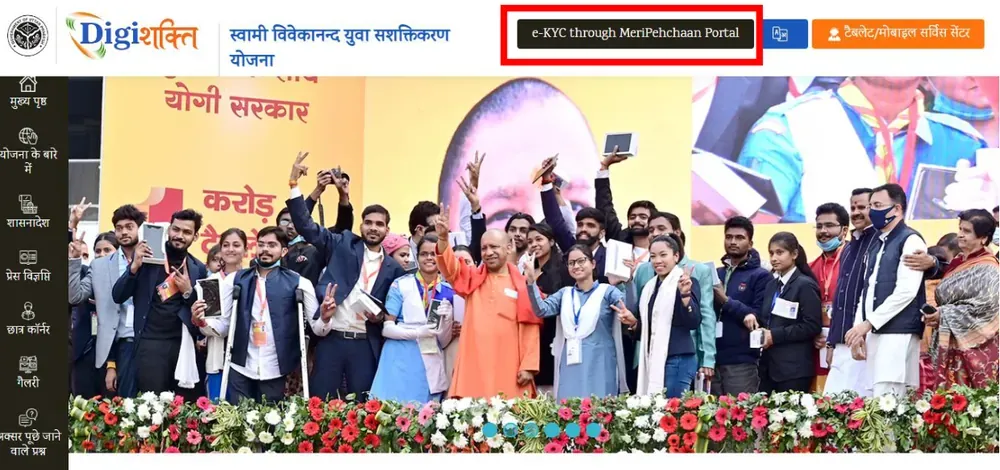
We followed the official user manual for this, screen by screen. It starts on digishakti.up.gov.in, where a dark button near the top right reads e-KYC through MeriPehchaan Portal. Clicking it takes you to a form called Search Student Details.
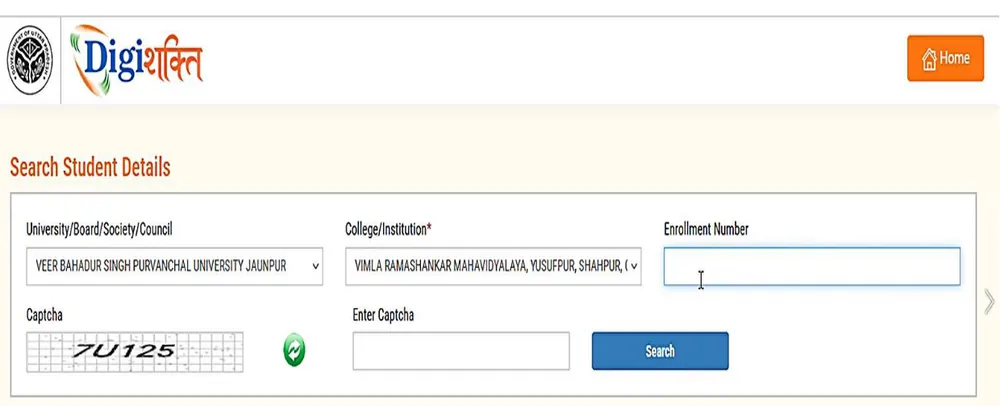
The form wants four things from you. There’s the university (it’s labelled University/Board/Society/Council), then your college under College/Institution, your Enrollment Number, and a captcha. Hit Search once they’re in.
If everything was uploaded properly, your record pops up along with an Aadhaar e-KYC Status. Until you finish the e-KYC it shows Pending, and just below it sits a button with a long name, Verify through the Login Using e-Pramaan MeriPehchaan. That button sends you off to e-Pramaan MeriPehchaan to sign in.
People who already have a MeriPehchaan account just sign in. Everyone else clicks New user? Signup for MeriPehchaan, types a mobile number, asks for an OTP with Generate OTP, and verifies it. After that comes a form with your details and the terms, and then the Sign-Up button.
The Aadhaar e-KYC page comes next. Your Aadhaar number goes in here, and you choose whether the OTP should arrive on your mobile or by email before pressing verify through e-KYC. A code then lands on your Aadhaar-registered mobile or email. Type it in, press Verify, and if the details line up you get a success message.
To be sure it worked, go back to Search Student Details and search again. It should now say Verified, and that verify button will have gone.
What each e-KYC status means
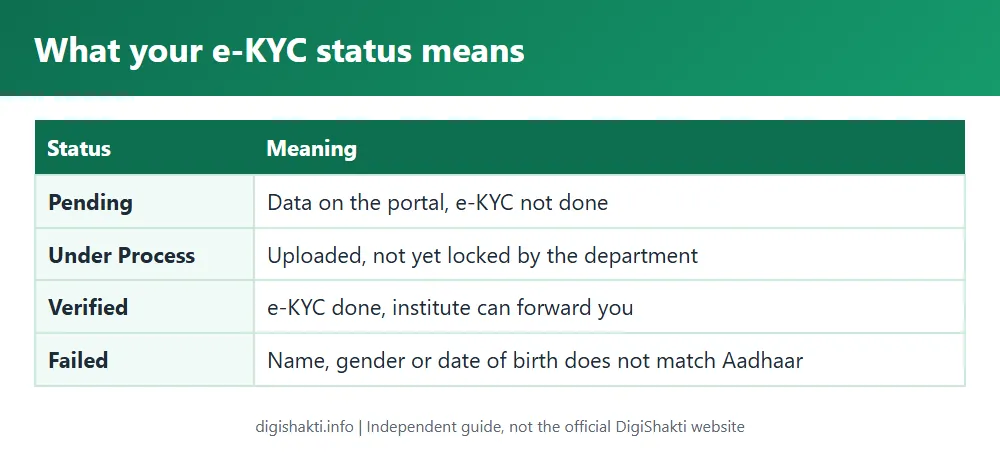
| Status or message | What it means | What to do |
|---|---|---|
| Pending | Your data is on the portal but you haven’t done e-KYC yet. | Follow the steps above. |
| Your data verification is Under Process | Your institute has uploaded your data but it hasn’t been locked by the department yet. | Wait, and check with your institute’s nodal officer. |
| Verified | Aadhaar matched. Your data is now visible to your institute, which forwards it to the district nodal officer for device selection. | Nothing more online. Watch for SMS and notices from your institute. |
| Failed | Your name, gender or date of birth on the portal doesn’t match your Aadhaar. The portal shows which detail is different. | See below. |
If your e-KYC fails
Usually, Failed simply means the details your institute uploaded don’t match your Aadhaar. The portal even points out which one: name, gender or date of birth. You can go one of two ways. Either ask your Institution Nodal Officer to correct it on the DigiShakti portal, or get your Aadhaar card updated instead.
Be ready for a bit of waiting if the portal record is the one that changes. A corrected record has to go through the whole chain again, so the institute verifies it, the university approves it and the department locks it. Only after that can you try the e-KYC a second time.
If your name doesn’t show up
The official manual doesn’t have a separate message for this case. It usually comes down to one of two things. You may have picked the wrong university, college or enrollment number, or your institute simply hasn’t uploaded your data yet. Look carefully at how your college is spelled in the list first. If that’s right, it’s a question for your college’s nodal officer.
OTP problems
The OTP is the only method the official process uses. It goes to the mobile number or email linked with your Aadhaar. Didn’t get it? Try the other option, email instead of mobile or the other way round. And if neither is linked, or both are old, you’ll have to update them through Aadhaar before you try again. You won’t find biometric e-KYC or e-KYC at a service centre anywhere in the manual.
Avoid fraud
The UP government doesn’t charge anything for the tablet. Students never get a login ID at any stage, and there’s no application form to fill. So if a link, a page or a person asks for your details or money to “get you a tablet”, it isn’t official. Don’t fill anything in, and don’t pay. Keep your Aadhaar OTP to yourself too, even if the caller says they’re from the scheme.
Related guides
- DigiShakti status check and student list
- Swami Vivekananda Yuva Sashaktikaran Yojana: eligibility and priority
- DigiShakti tablet list, models and government orders
Source: User Manual for Aadhaar Authentication (Annexure-1) and GO 667/77-1-2024 dated 27 August 2024, both published on digishakti.up.gov.in. Checked 3 November 2026.